Setting Up PayPal Direct Payments
Overview
A Guide to Setting Up Direct Payouts.
Our guide will walk you through the process of integrating with the PayPal Payouts API. This integration allows you to efficiently process bulk payments to your affiliates directly from the Lolly dashboard.
Requirements
- A PayPal Business Account
- You must have PayPal Payouts enabled on your account. Below, we'll guide you through checking and enabling this feature.
Where to find Payment Integration in Lolly
- Click on your profile in the upper-right corner and choose "Settings."
- Click on the "Integrations" tab.
- Scroll down to the "Payment Integrations” section.
- Click on the “PayPal” card.
PayPal Steps
Steps 1 :
Visit the PayPal Developers Page and log in to the developer dashboard by clicking the 'Log into dashboard' link located in the top-right corner of the page.
Activating this feature may take anywhere from a few hours to several days. You will receive an email notification once it is activated. After receiving the notification, you can log back into the PayPal dashboard as outlined in Step 1.
Steps 2 :
Navigate to "My Account" in the top-right corner. Scroll down until you reach the "Permissions" section. Look for the "Payouts" row and check if there is a green checkmark in the Live column or an "Enable" link as shown in the screenshot below.
If you see the "Enable" link, click on it. You will likely be prompted to contact PayPal and request activation of the Payouts API feature for your account.
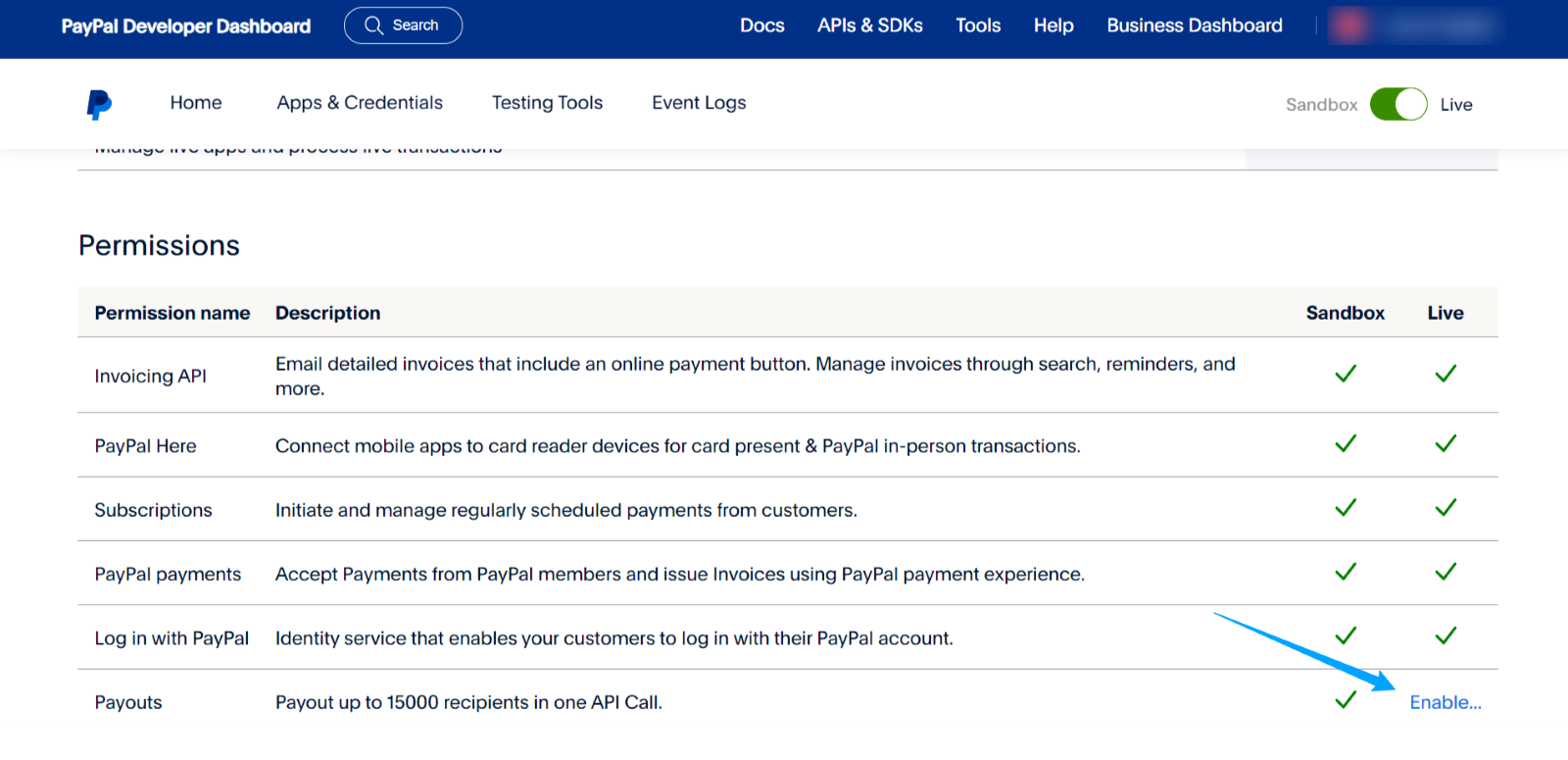
If you see the "Enable" link, click on it. You will likely be prompted to contact PayPal and request activation of the Payouts API feature for your account.
Activating this feature may take anywhere from a few hours to several days. You will receive an email notification once it is activated. After receiving the notification, you can log back into the PayPal dashboard as outlined in Step 1.
Steps 3 :
Click on "Apps and Credentials" from the menu. Next, select the "Live" tab on the right side, then click the "Create App" button. Enter "Lolly Payouts" in the "App Name" field and click "Create App" again.
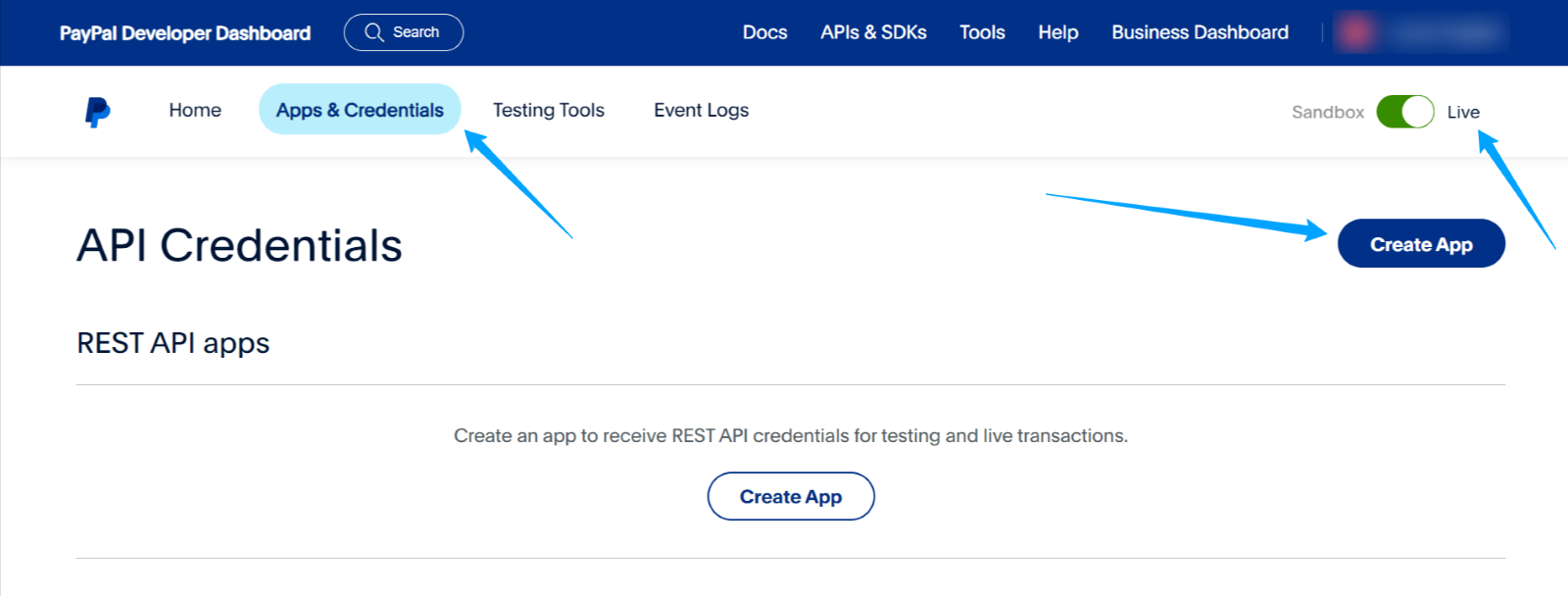
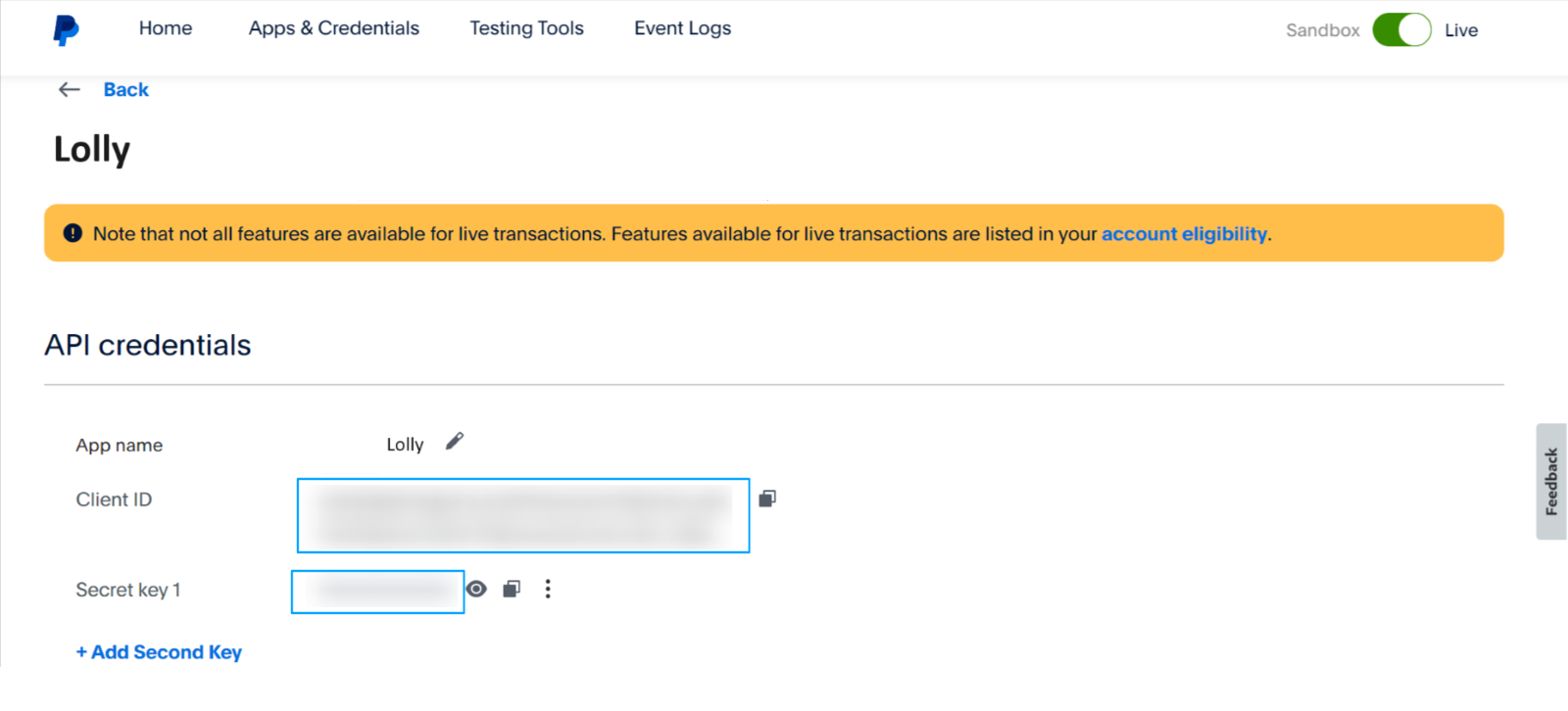
Once the app is created, you will see the details needed to connect Lolly to PayPal (refer to the screenshot below).
Note: If you see "Live/Sandbox" in the top-right corner after creating the app, ensure that "Live" is selected.
Step 4 :
Copy the "Client ID" and "Secret Key" values and paste them into the corresponding fields in the Lolly PayPal integration form.
Click on the "Save" button.
Step 5 (Last Step) :
If the save is successful, it means the connection to the PayPal API was established correctly and the API connection is working.
If you have any issues or concerns, please reach out to us at support@lolly.com
Related Articles
Setting Up Lolly Pixel on Your Custom Website Using JavaScript
Overview Lolly Pixel allows you to track visitor activity, measure campaign performance, and optimize your influencer marketing efforts. By integrating the pixel into your custom website using JavaScript, you can collect valuable data on user ...Home Page Overview
The Home Page serves as the central hub for the platform, providing easy access to major functionalities and resources for users. From campaign creation to influencer discovery, it ensures a seamless start to your Lolly journey. Get Started ...Analytics Overview
Overview: The Analytics section in Lolly provides brands with a comprehensive overview of their campaign performance in a clear and structured format. It presents key metrics to analyze engagement, expenses, return on investment, and other essential ...Sequence Management
Overview Setting up your Sequencing is an important part of making the lolly platform work for you in the most efficient way possible. With millions of Influencers to contact, your email sequencing will take away much of the headache that comes with ...Settings Overview
Overview Account settings are where you’ll find and manage all the details of your plan and team. You can set up your team to have access to the software, manage security and passwords, track usage and make changes to your plan and view your payment ...